Managing account members
Learn how to invite, manage, and remove members on your Knock account.
Overview
#People with access to your Knock account are called members. Each member has a role that determines what they can do in your account. With appropriate permissions, members can access the Members page in your Knock dashboard settings. You can use this page to invite, manage, and remove members from your account.
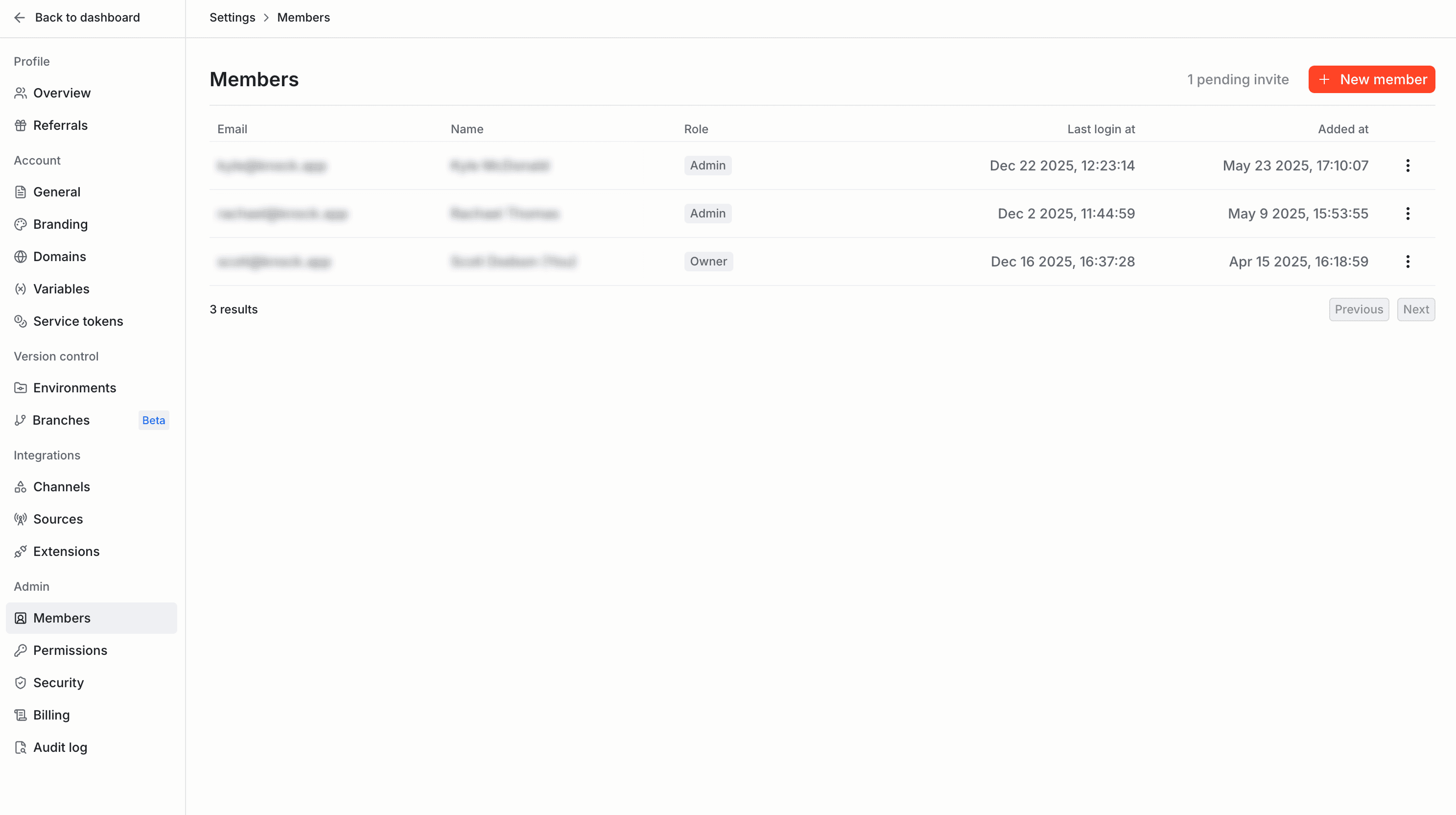
Adding members
#Inviting members
#You can invite new members to your account by selecting the "New member" button on the Members page. Members are always invited via their email address and must be assigned a role. You can optionally include a message that will appear in the invitation email.
The member will be sent a reminder email if the invite is not accepted within 3 days. Account invites will automatically expire after 2 weeks.
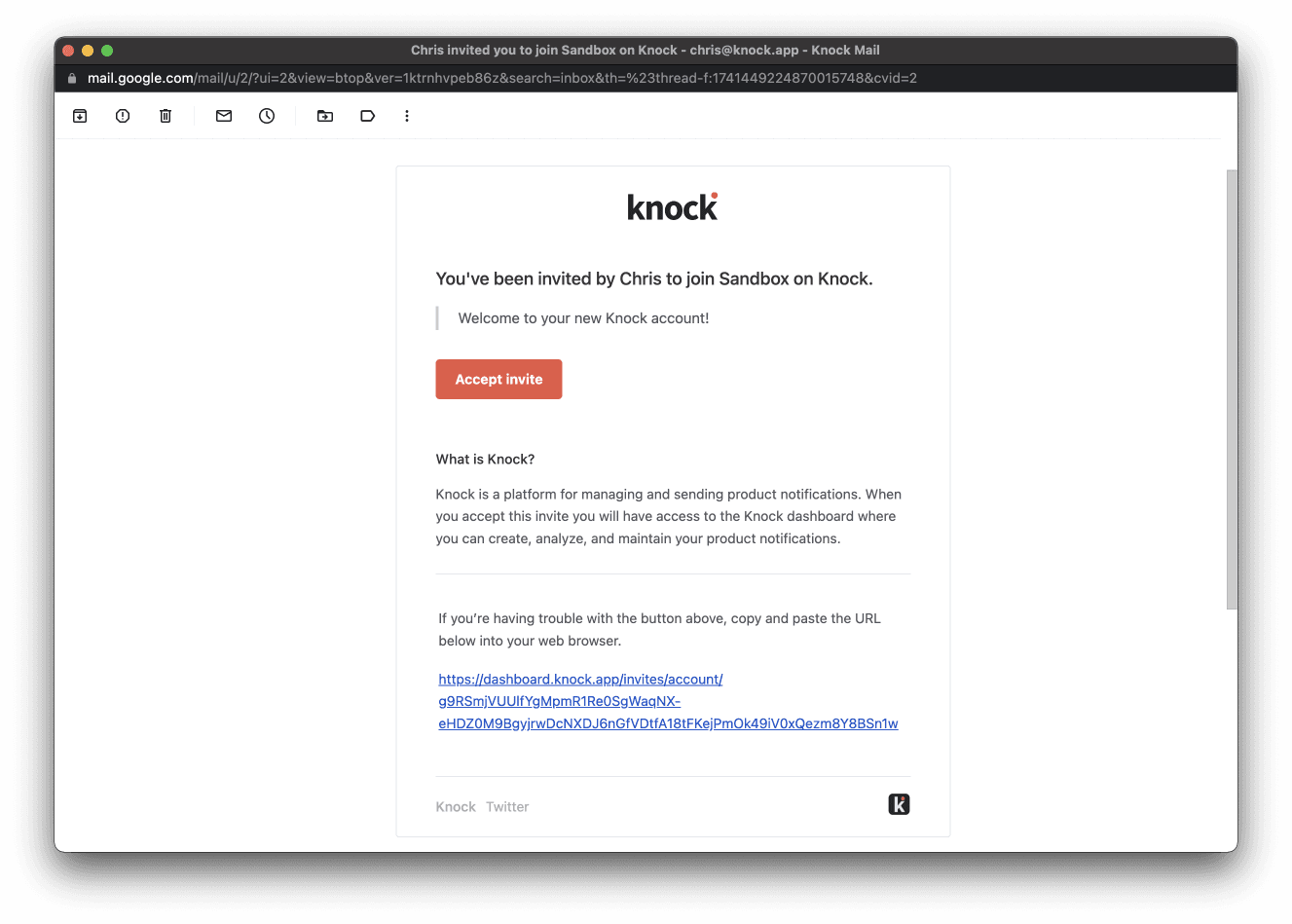
An example invitation email inviting a user to a Knock account
Managing invitations
#Once you invite a user to your Knock account, their invitation appears as a "pending invite" on the Members page until they accept. You can revoke pending invitations, which marks the invite as invalid and expires it immediately.
Once you revoke an invitation for a user, you can reinvite them by following the same "New member" process. This will generate a new invitation for the user to join your account.
Enabling auto-join
#You can enable auto-join on your account to let users that belong to your domain automatically join your account when signing up for Knock. This is helpful for cases where people from your organization sign up for Knock on their own without realizing your account already exists.
You can enable auto-join on the Security page under the Admin section of your account settings in your Knock dashboard.
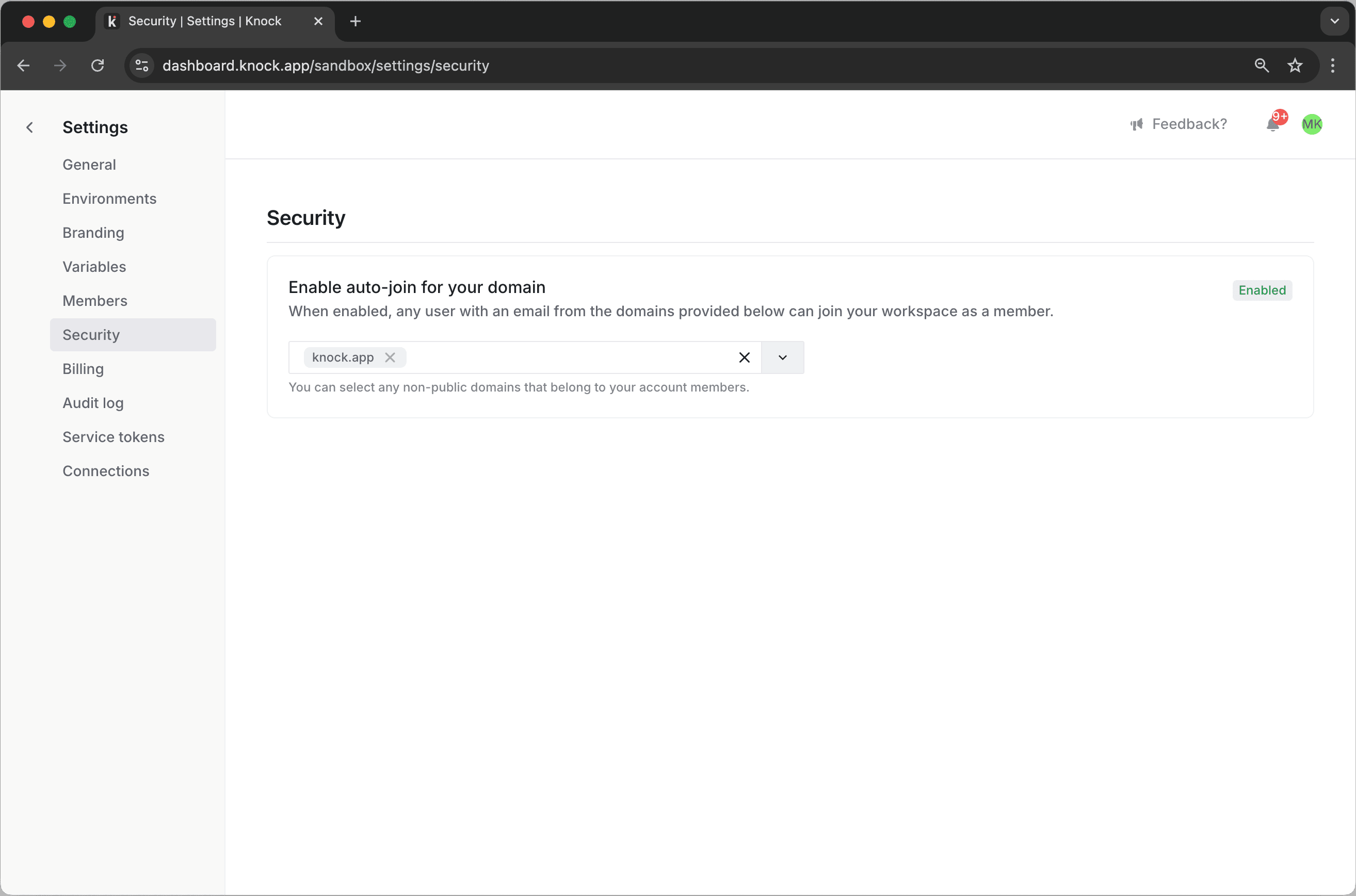
When you enable auto-join, you'll need to select which domains can auto-join your account. For security reasons, we only let you select non-public domains that belong to the owners of your account.
This means that you cannot enable auto-join for public domains (such as gmail.com). Additionally, before you can add a new domain to auto-join, someone with an email address from that domain must have an owner role on your account.
Managing members
#Updating member roles
#Account members with appropriate permissions can update the roles of others by selecting "Change role" from the three-dot menu. The role change will take effect immediately.
Removing members
#Members with appropriate permissions can remove other members from an account by clicking the "Remove member" option found in the three-dot menu. Removing a member will revoke their access to Knock and immediately invalidate any session associated with the member. The removed member will receive an email informing them of the change in account access.